> ## Documentation Index
> Fetch the complete documentation index at: https://docs.guito.pt/llms.txt
> Use this file to discover all available pages before exploring further.
# Connect Interactive Brokers
> Connect your Interactive Brokers account to guito through the Client Portal to sync positions, cash, and activity.
Once you connect your Interactive Brokers account, guito automatically syncs your positions, cash, and activity, which then appear alongside the rest of your net worth with no manual entry. Available on the Plus plan.
guito has read-only access to your reports. It never places orders or moves money in your Interactive Brokers account.
## Connect your account
You'll need a Token and a Query ID, generated in the Interactive Brokers Client Portal.
Go to **Connections** in the sidebar, or go straight to `/connections`.
Click **New connection** and, in the list of institutions, select **Interactive Brokers**.
Open the Interactive Brokers Client Portal and sign in. Go to **Performance & Reports**, open the **Third-Party Reports** tab, and on the **Third-Party Services** card, click the **+** button. Type "guito" in the search box and press Enter, then select the guito tile and confirm with **Continue**.
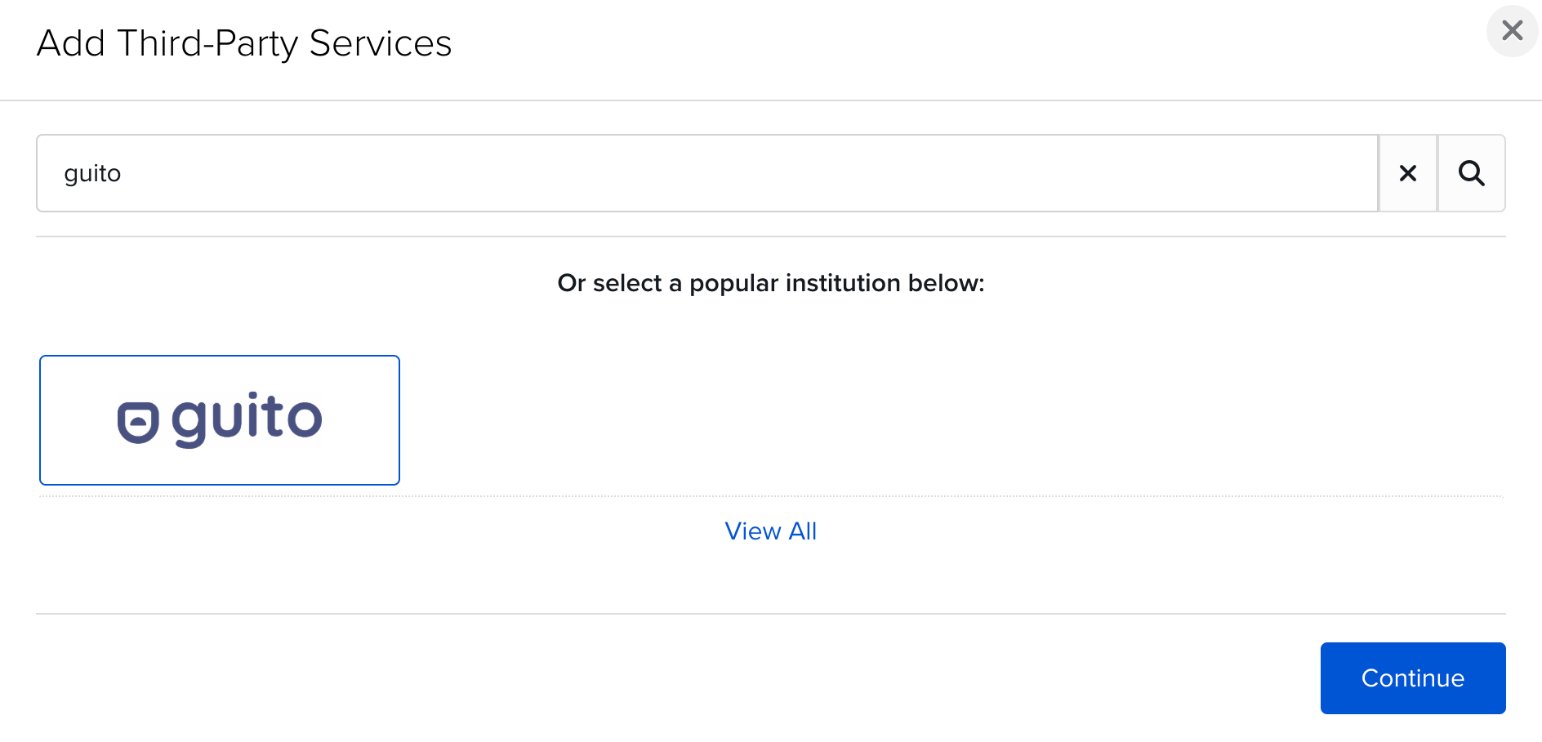 *guito is not one of the institutions shown by default, so search for it rather than looking for it in the grid.*
Back on the **Third-Party Services** card, find a row named **guito**, with Token and Query ID columns.
*guito is not one of the institutions shown by default, so search for it rather than looking for it in the grid.*
Back on the **Third-Party Services** card, find a row named **guito**, with Token and Query ID columns.
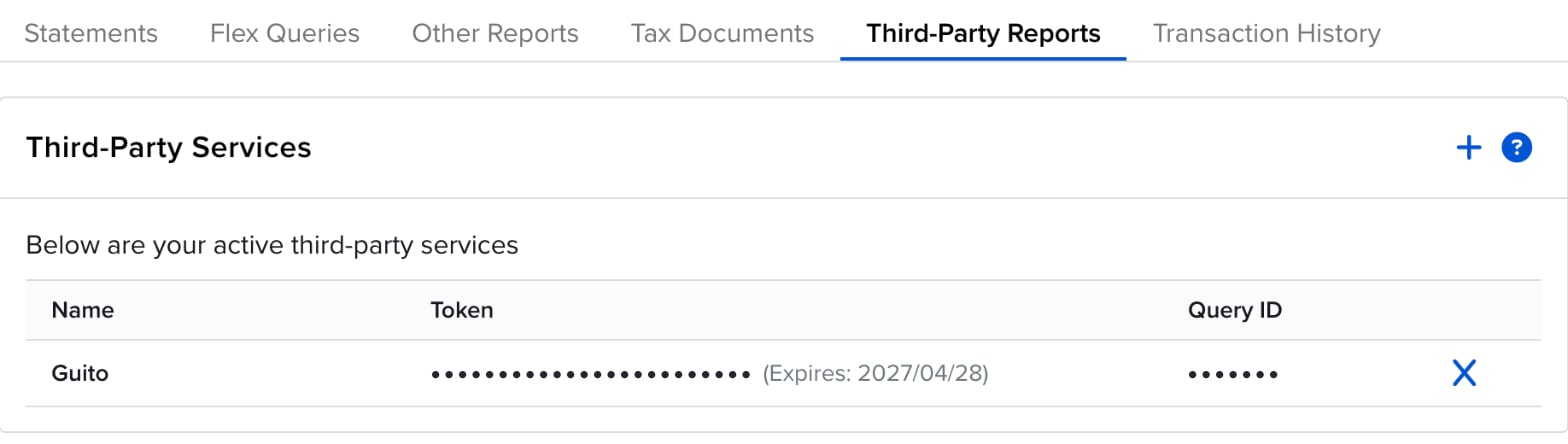 Paste the **Token** and the **Query ID** into the matching fields in guito and confirm.
The Token has an expiration date, shown next to it in that same table (for example, "Expires: 2027/04/28") and nowhere else. When the Token expires, syncing stops until you paste a new one, so it's worth making a note of that date.
If you have other third-party services active, the table will have more than one row: always copy the Token and Query ID from the **guito** row.
## Keep your data up to date
You don't have to do anything to keep the account current. guito syncs Interactive Brokers automatically once a day, Tuesday through Saturday, from the report Interactive Brokers makes available for the previous business day. There's no manual sync.
If you just enabled guito in the Client Portal, Interactive Brokers may not have produced the first report yet. Until it does, the connection can't be completed: guito tells you and asks you to try again on the next business day.
## What guito syncs
Your positions appear in your portfolio, with quantity and average cost.
Your balance is updated from the daily Interactive Brokers report, per currency.
Dividends and interest are imported and classified under the Investments category.
Deposits and withdrawals come in as Transfers; fees go under Fees and charges.
### Multiple currencies
If your Interactive Brokers account holds cash in more than one currency, guito treats each currency as its own cash account (for example, "Interactive Brokers (USD)"), each with its own history in the original currency and converted to euros in your totals.
### Conflicts with manual transactions
If you've manually recorded a buy or sell that Interactive Brokers now also imports, guito automatically merges the entries that are clearly the same trade. Any remaining possible duplicates go to the **Overlaps to review** panel on the **Connections** page, where you confirm which ones match: the ones you confirm are replaced by the imported version, and the rest stay as separate transactions.
## Update credentials, disconnect, and reconnect
If the Token expires or is revoked, choose **Update credentials** in the connection card's action menu and paste the current Token and Query ID from the **guito** row.
To end the connection, choose **Disconnect** from the same menu. The Interactive Brokers accounts are archived and the Token and Query ID are deleted. Everything already imported stays visible.
If guito is already active on the Third-Party Services card, adding it again with the **+** button gives the error "The selected service is already enabled." No need to redo the connection: use **Update credentials** with the Token and Query ID from the **guito** row.
## Limitations
* guito imports up to 3 years of history. Buys and sells older than that come in as a single opening-balance entry.
* Corporate actions such as mergers or acquisitions aren't applied automatically: you may need to adjust the affected position manually. Splits are the exception — those are applied automatically.
* Instruments such as options and warrants aren't supported yet.
* When Interactive Brokers gives no acquisition cost, as happens with shares transferred in from another broker, the position is recorded without a cost and its gain can't be calculated, showing as "—".
* Available on the Plus plan only.
## Related pages
See how your Interactive Brokers positions and cash join the rest of your net worth.
Another broker guito syncs automatically.
Paste the **Token** and the **Query ID** into the matching fields in guito and confirm.
The Token has an expiration date, shown next to it in that same table (for example, "Expires: 2027/04/28") and nowhere else. When the Token expires, syncing stops until you paste a new one, so it's worth making a note of that date.
If you have other third-party services active, the table will have more than one row: always copy the Token and Query ID from the **guito** row.
## Keep your data up to date
You don't have to do anything to keep the account current. guito syncs Interactive Brokers automatically once a day, Tuesday through Saturday, from the report Interactive Brokers makes available for the previous business day. There's no manual sync.
If you just enabled guito in the Client Portal, Interactive Brokers may not have produced the first report yet. Until it does, the connection can't be completed: guito tells you and asks you to try again on the next business day.
## What guito syncs
Your positions appear in your portfolio, with quantity and average cost.
Your balance is updated from the daily Interactive Brokers report, per currency.
Dividends and interest are imported and classified under the Investments category.
Deposits and withdrawals come in as Transfers; fees go under Fees and charges.
### Multiple currencies
If your Interactive Brokers account holds cash in more than one currency, guito treats each currency as its own cash account (for example, "Interactive Brokers (USD)"), each with its own history in the original currency and converted to euros in your totals.
### Conflicts with manual transactions
If you've manually recorded a buy or sell that Interactive Brokers now also imports, guito automatically merges the entries that are clearly the same trade. Any remaining possible duplicates go to the **Overlaps to review** panel on the **Connections** page, where you confirm which ones match: the ones you confirm are replaced by the imported version, and the rest stay as separate transactions.
## Update credentials, disconnect, and reconnect
If the Token expires or is revoked, choose **Update credentials** in the connection card's action menu and paste the current Token and Query ID from the **guito** row.
To end the connection, choose **Disconnect** from the same menu. The Interactive Brokers accounts are archived and the Token and Query ID are deleted. Everything already imported stays visible.
If guito is already active on the Third-Party Services card, adding it again with the **+** button gives the error "The selected service is already enabled." No need to redo the connection: use **Update credentials** with the Token and Query ID from the **guito** row.
## Limitations
* guito imports up to 3 years of history. Buys and sells older than that come in as a single opening-balance entry.
* Corporate actions such as mergers or acquisitions aren't applied automatically: you may need to adjust the affected position manually. Splits are the exception — those are applied automatically.
* Instruments such as options and warrants aren't supported yet.
* When Interactive Brokers gives no acquisition cost, as happens with shares transferred in from another broker, the position is recorded without a cost and its gain can't be calculated, showing as "—".
* Available on the Plus plan only.
## Related pages
See how your Interactive Brokers positions and cash join the rest of your net worth.
Another broker guito syncs automatically.