

/budgets). Each budget works like an envelope: a maximum amount for a set of categories, on a cycle that restarts each month (or on whichever period you choose). Unlike goals, a budget doesn’t set any money aside: it only measures the current cycle’s spending against the limit.
To set money aside with a purpose (emergency fund, a trip, a down payment on a house), use Goals instead.
Create a budget
1
Open the Budgets page
In the sidebar, under Plans, select Budgets and click Add.
2
Set the limit and scope
Enter the cap amount for the cycle and the categories or category groups it tracks. If you pick no categories, the budget becomes an overall cap that applies to all spending.
3
Choose the cycle
By default the cycle is monthly. It can also be quarterly, semi-annual, or annual. The cycle starts on the day you choose (for example, the day your salary lands) and ends the day before the next cycle begins.
4
Save
Confirm to create the budget.
What counts toward the limit
The cycle’s spending comes from your transactions in the budget’s categories:- Same-category refunds subtract from spending. Spend €50 at a restaurant and get €25 back, categorized under restaurants, and the budget counts €25, not €50. A refund left uncategorized, or tagged as income, won’t reduce spending. If refunds exceed spending, the figure stays at €0, never negative.
- Overall budgets ignore refunds. An overall cap (no categories) sums outflows only and stays gross, so your salary and other income aren’t mistaken for spending.
- Transfers and excluded movements don’t count. Transfers between your own accounts and excluded movements are left out.
- A budget with no valid categories counts nothing. If you delete every category of a category-scoped budget, it stops measuring spending (it stays at €0) rather than switching to counting everything. The detail page reads No categories; edit it and pick new categories to start measuring again.
- Only the part of a split transaction counts. If you split a transaction across several categories, the budget adds up only the part that sits in one of its categories, not the whole transaction: from a €790.00 “Daycare fees” payment with €110.00 in Education, an education budget counts €110.00. In the movements list that row shows €110.00 and reads Part of €790.00, so the figure is recognisable against your statement.
Change the cap over time
A budget’s cap can change over time without rewriting history. Each past cycle stays measured against the cap that was in effect then. On the web, you manage the cap on the budget page, in the Cap over time section: you’ll see the base cap and each change, and you can add a new cap from any month you choose, edit it, or remove it. In the app, the cap changes in the edit form, with an Applies from row right below it. By default the change applies from the current cycle, so past cycles stay as they were; pick From the start only if you really do want to change the cap of every cycle, past ones included.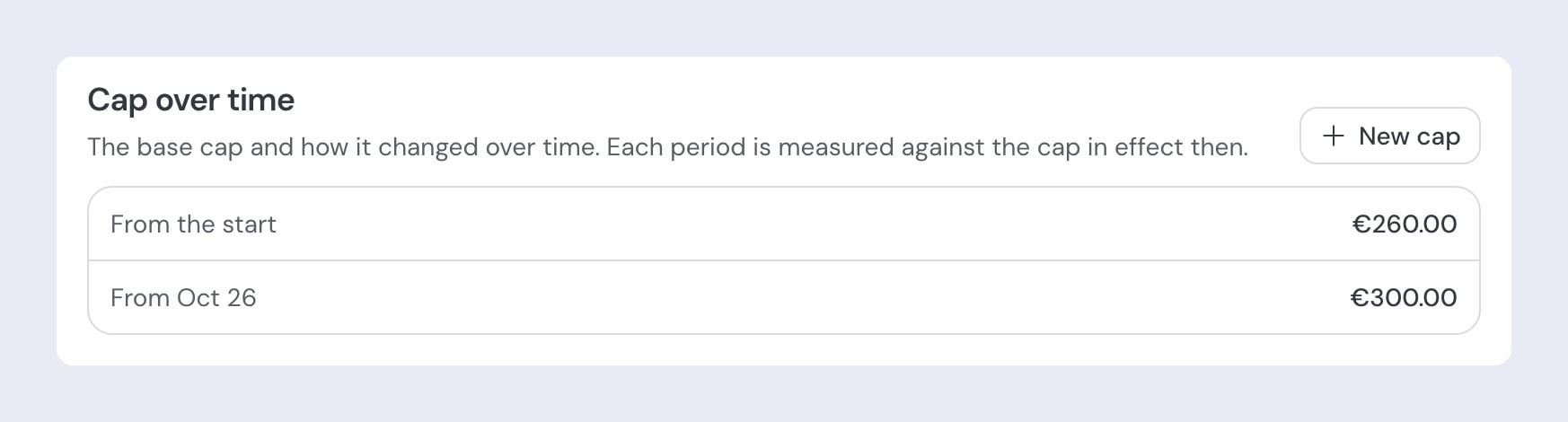
Carry the unused balance over (rollover)
Enable rollover (Carry balance between cycles) in the budget form so the unused balance of each cycle carries over to the next, envelope-style. The current cycle’s effective cap becomes the defined limit plus the accumulated balance from previous cycles. Two rules apply:Over-budget cycles don't create debt

Over-budget cycles don't create debt
A cycle where you went over the limit contributes 0 to the accumulated balance, never a negative amount. Overspending doesn’t drain the following months’ envelope.
Editing the cycle or categories resets the balance

Editing the cycle or categories resets the balance
Changing the cycle or the categories of a budget with rollover resets the carried-over balance to zero; guito shows a warning before saving. Changing just the cap does not reset the balance.
Turning rollover off erases the carried balance
Turning rollover off erases the carried balance
Turning Carry the balance between periods off erases the balance already carried; turning it back on starts from zero. guito warns before saving this change too.
The budget detail page
Click a budget to open its detail page, with spending against the limit, the cycle’s spending chart, and the list of movements, where each movement links to the matching transaction so you can review or recategorize it. The date selector at the top filters the chart and the list, but the spending-vs-limit figure always refers to the current cycle. From the detail page you can edit or delete the budget.Budgets on the overview
Budgets also appear as a widget on the overview. You can choose which ones appear using the settings icon on the widget.Related pages

Goals
Set money aside with a purpose: emergency fund, trips, a down payment on a house.

Spending categories
Organize the categories that feed your budgets.

Accounts
The accounts and movements that produce the spending you track.

Overview
See budgets and goals side by side on the overview.