

You authorize access at your own bank’s portal, with your usual credentials, never inside guito. Access is read-only: guito reads your account balances, your transaction history, and the account holder name and IBAN, but can never move money or authorize payments.
Connect your first account
The steps are the same for any supported bank.Automatic open-banking sync is part of the Plus plan and is included in the 14-day free trial, no card required.
1
Open the accounts page
Go to Accounts in the sidebar.
2
Add an account
At the top of the page, click Add.
3
Choose your bank
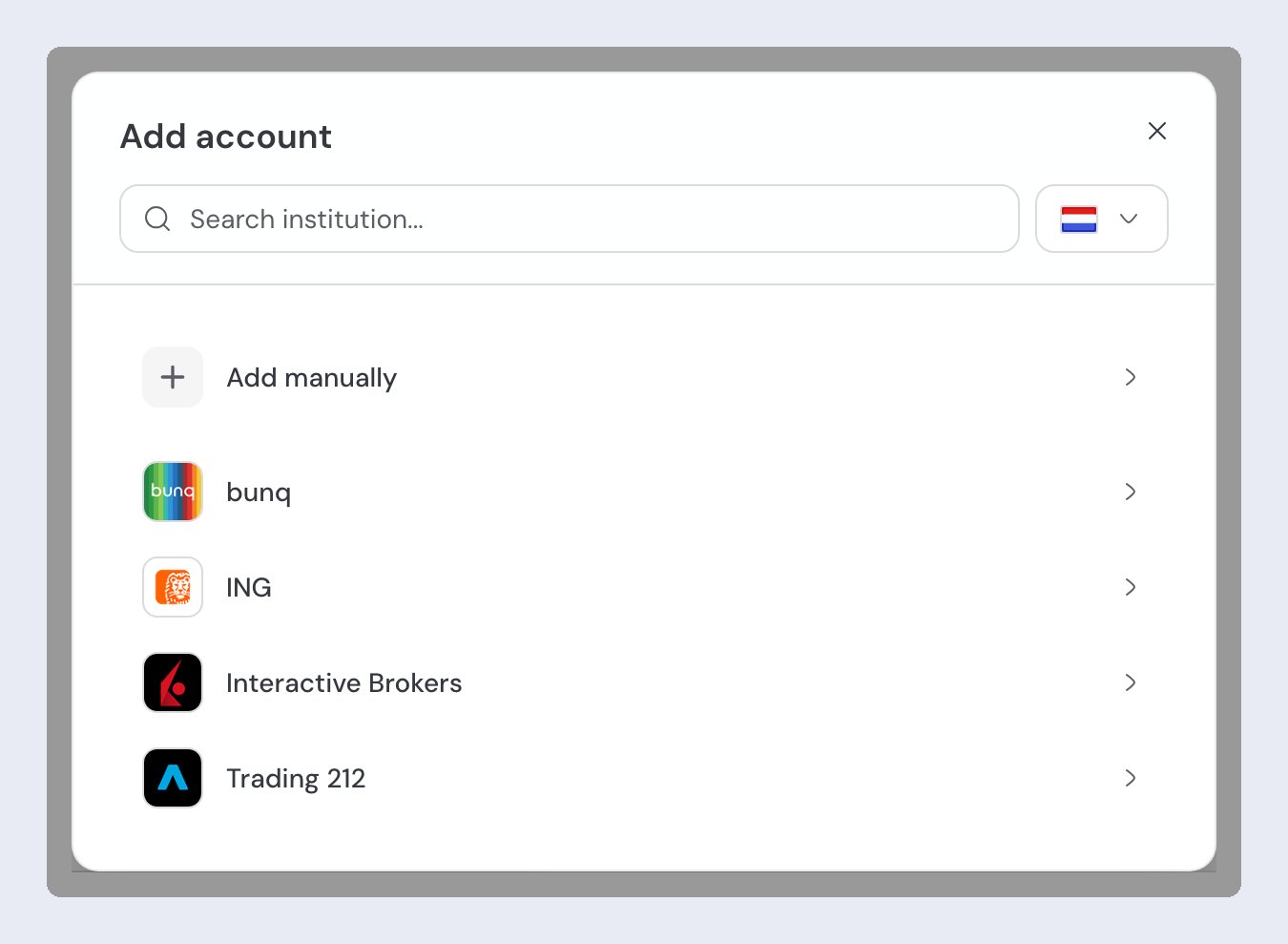
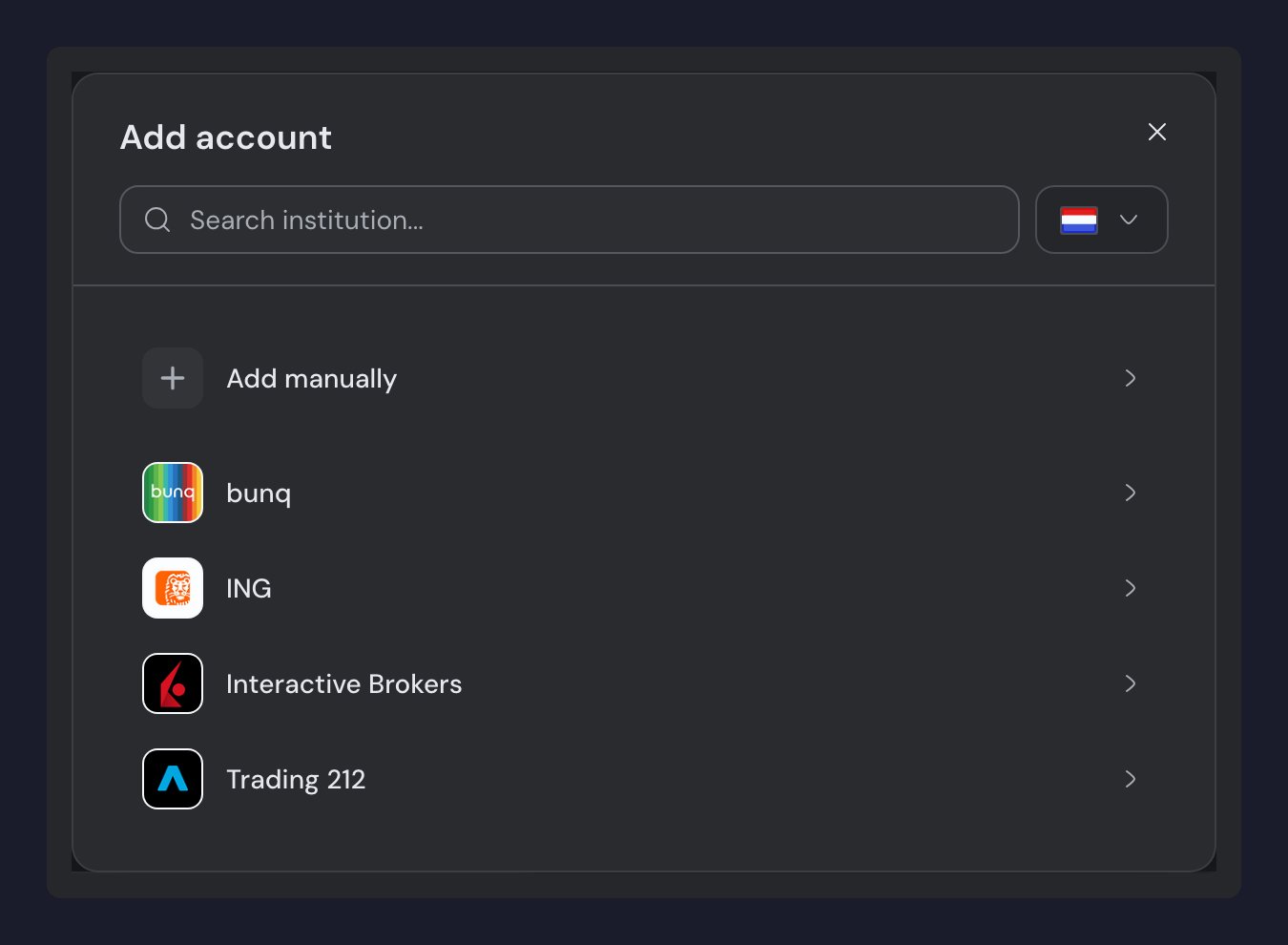
Pick your country in the selector next to the search box, then search for your bank and select it. (Add manually, above the list, creates an account with no bank connection instead.)
4
Review the permissions
On the Permissions screen, click Continue.
5
Sign in at your bank's portal
You’ll be redirected to your bank’s portal. Sign in with your usual banking credentials.
6
Authorize access and select accounts
Still at your bank’s portal, authorize read access, select the accounts you want to share, and finish the authorization. guito adds those accounts and starts syncing them.
See your balance appear
After you authorize, you come back to guito on the Connections page, where you can watch the connection sync. Once that first sync finishes, the account appears under Accounts with its balance, and your transactions are already named, categorized, and matched to a merchant.Next steps

Bank sync
How automatic sync works, how often your data refreshes, and how to renew a connection.

How balances work
How guito calculates and displays your account balances.