

/investments).
Record a buy or sell
1
Click Add
Click Add, at the top of the page. The same window covers what guito quotes and what it doesn’t. For a holding you already have, use Add transaction on that position’s own page.
2
Search for the asset
Type the name or symbol. Stocks, ETFs, funds, crypto and savings certificates all appear in the same results.
3
Fill in the form
Select the asset and enter the operation (buy or sell), the date, the quantity, the unit price and, if you want, the fee. On a buy with more than one exchange available, pick it under Listing.On a sell, guito shows how much you have available underneath the quantity, with Sell all to fill in the whole position. A sale comes out of where you hold the shares: if you hold the same product on more than one exchange, say which under Sell from, and each exchange is sold separately.
4
Link it to the bank movement
Under Source account, pick the account the money left or arrived in. This step is optional.On a bank-connected account, guito looks for the matching movement and, when it finds it, leaves it already picked — tap it to swap it for another. There’s nothing to create: the movement is the bank’s own, with the bank’s description and reference.If it hasn’t arrived from the bank yet, choose Hasn’t arrived from the bank yet?. guito records the purchase anyway and, once the movement arrives, swaps it for the bank’s on its own, so you don’t end up with the same payment twice in your movements list.On an account guito doesn’t sync, enter the amount and guito creates the movement for you.
5
Save
Add transaction saves and closes the window. Save and add another saves this one and returns you to the search for the next.
What the list shows
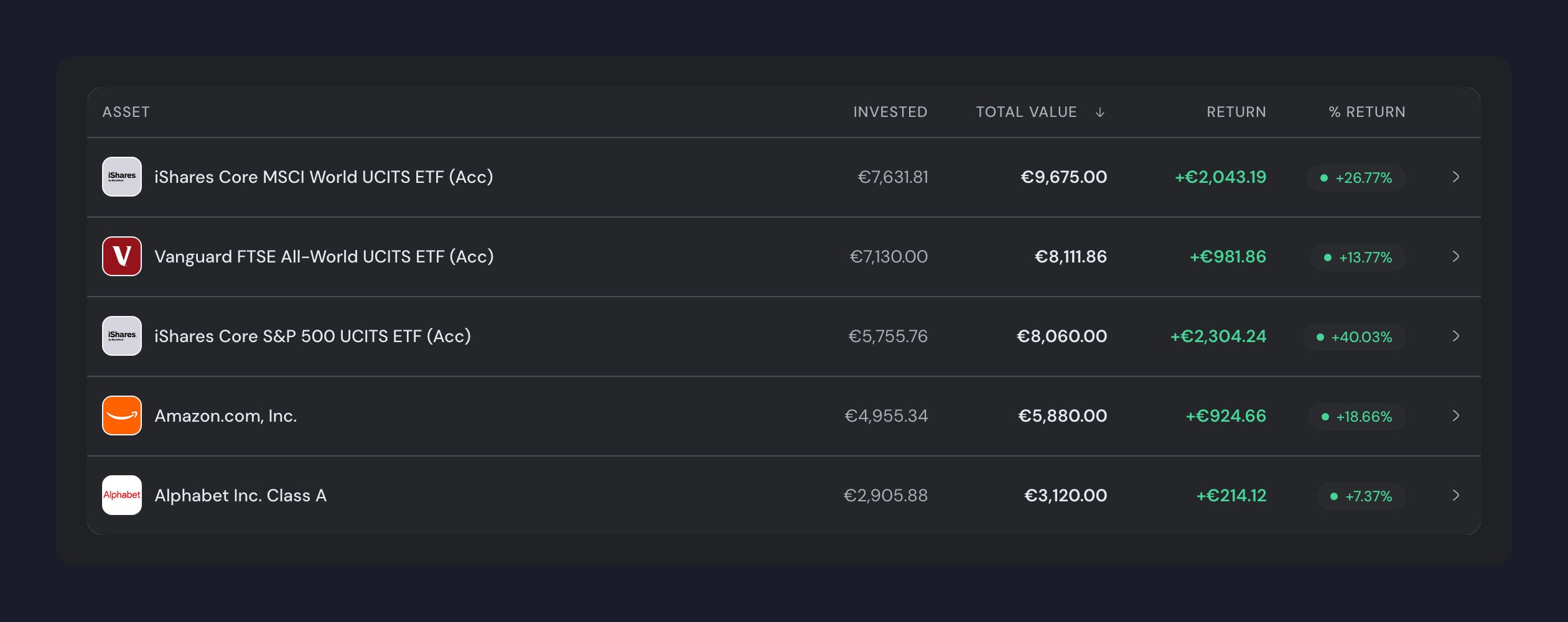
Each row carries the asset’s name. On the right sit four numbers, the same ones in every group: Invested, what you put into the position; Total value, what it’s worth today; Return, what you’ve gained or lost in euros; and % Return, that same gain as a percentage. The Invested column adds up to exactly the Invested figure at the top of the page. On a computer, click a column heading to sort the list by it.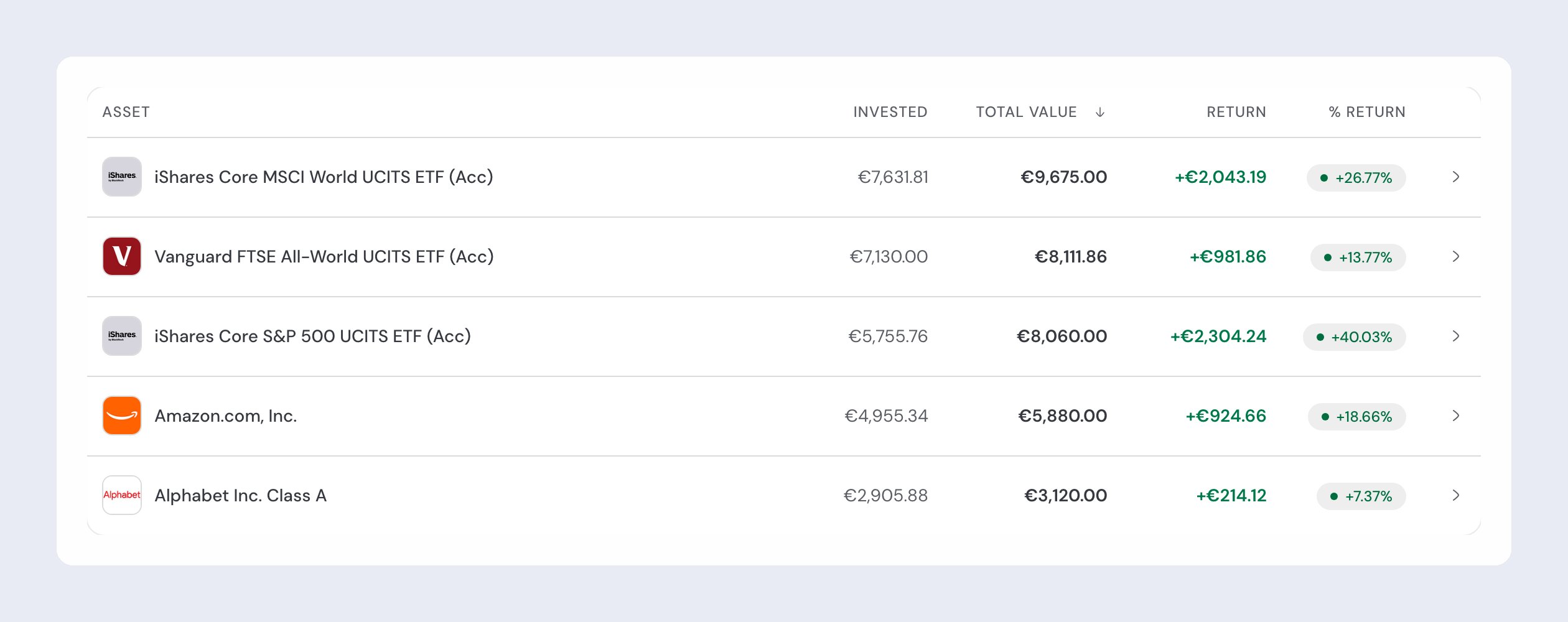
View a position’s details
Click a position in the list to open its details page:- At the top of the page: market value, gains or losses, and a chart of the position’s value over time. The time range is controlled by the date selector in the header.
- Transactions: the full history of buys and sells, with multi-select to delete in bulk.
- Insights and Details, alongside (below, on a narrow screen): total cost, the number of units, the position’s weight in your portfolio, the average price you paid, the current price and the date of the last quote.
Edit a transaction
In Investments, open the position, scroll down to the Transactions section and click the transaction. You can write a note and link the transaction to a movement in your bank account. The date, quantity, price and fee are read-only.Add notes to a transaction
When you edit a transaction, the Notes field holds a personal note — for example, why you bought or sold.Delete transactions
On the position’s page, in the Transactions section, tick the checkboxes of the transactions you want to delete, then click the trash icon in the bar that appears at the bottom.Deleting all of a position’s transactions removes it from the portfolio.
Closed positions
When you sell a position in full, it drops out of the main list, so only what you still hold stays in view. Closed positions stay in your history and keep the gain or loss you already realized.- To see them, open the ⋯ menu at the top of the page and turn on Show closed positions (it tells you how many there are). The option only appears once you have closed positions.
- To tuck away a closed position you no longer want to see, open it and choose Archive from the actions menu — only closed positions can be archived. To bring it back, open it and choose Restore.
When a product doesn’t show up in search
If you can’t find the fund, ETF or PPR you’re looking for, you can suggest adding it directly from search. In Investments, click Add, search for the product and choose Suggest adding this product, at the bottom of the results. The name is pre-filled; if you know it, enter the ISIN (it’s on your statement) and send.With a valid ISIN for a fund or ETF, the product is added on the spot and you can record it right away. Without an ISIN (for example, a PPR with no public ISIN), we log the suggestion and email you when the product becomes available. You can also suggest a product through the assistant: if it can’t find it, it asks you for the ISIN and handles the suggestion.
Investments with no quote
A stock, an ETF or a fund that isn’t in the catalog yet, money placed on a P2P platform, a share in a company or money you lent to someone are recorded under Add manually, in the same Add window. Instead of quantity and unit price, you enter how much you put in and what it’s worth today, and the position appears under Valued by you. See investments valued by you.Import a broker file
Import, in the ⋯ menu at the top of the page, opens the file picker for the CSV or TSV you exported from your broker. Review the trades and confirm to save them. See importing and exporting data.How your investments are grouped
Your investments appear in three sections: Investments for what guito quotes, Savings certificates, and Valued by you for the ones whose value you provide. In the ⋯ menu at the top of the page, under View, pick By type to see each section’s total, or By category to see positions by asset class. If any of your investments has a platform recorded, By platform appears as well. In the category view, a stock you recorded by hand counts as a stock, and an ETF as an ETF. Only off-market investments, such as P2P lending or a share in a company, form a category of their own, Alternatives.Related pages

Savings certificates
Track your savings certificates alongside the rest of your portfolio.

Crypto
Record and track cryptocurrency positions.

Investments valued by you
Stocks, ETFs, funds, bonds and crypto that guito doesn’t quote, P2P lending, private equity, business stakes and loans you granted.

Net worth overview
See how your investments roll up into your total net worth.