

/recurring).
Scheduled transactions are part of the Plus plan.
What guito does and doesn’t do
The amount of a scheduled transaction is always what you wrote: guito doesn’t adjust it, doesn’t compare it with what arrives from your bank, and doesn’t warn you if the real amount comes out different. If a loan charges you €150.00 this month and €155.00 next month, the scheduled transaction keeps recording €150.00 until you change the template. When the amount genuinely varies, a scheduled transaction is the wrong tool. Set a range for the amount instead, and the charge becomes a forecast, checked against the range you entered, rather than something guito records: see Recurring movements.Manual accounts only
A scheduled transaction only records movements into a manual account, meaning one without automatic bank sync. If you connect that account to your bank later, the scheduled transaction pauses itself: it stops recording movements while the account is connected, with nothing for you to turn off. If you disconnect the account again, it picks back up from there.Creating a scheduled transaction
- From the Recurring page
- From an existing movement
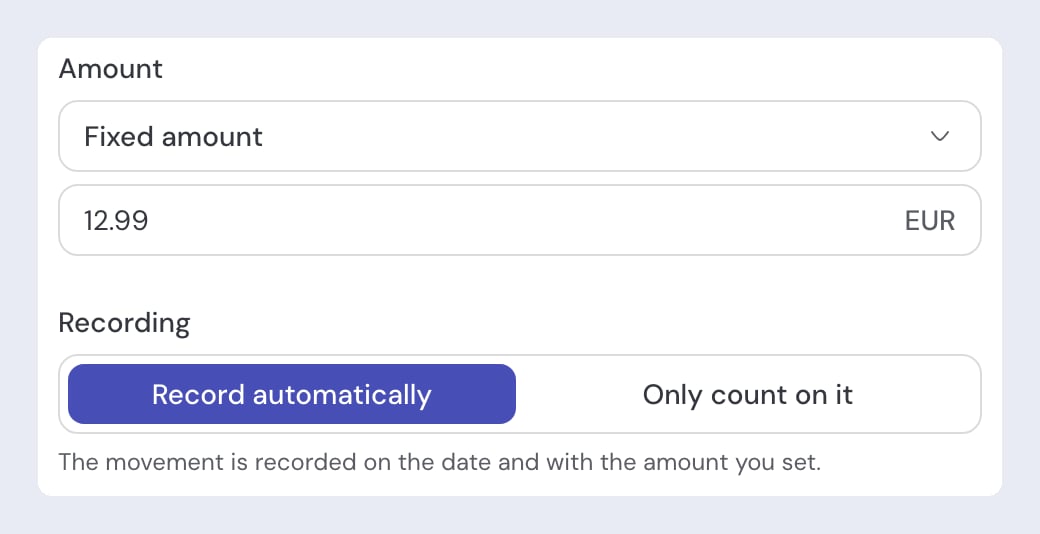
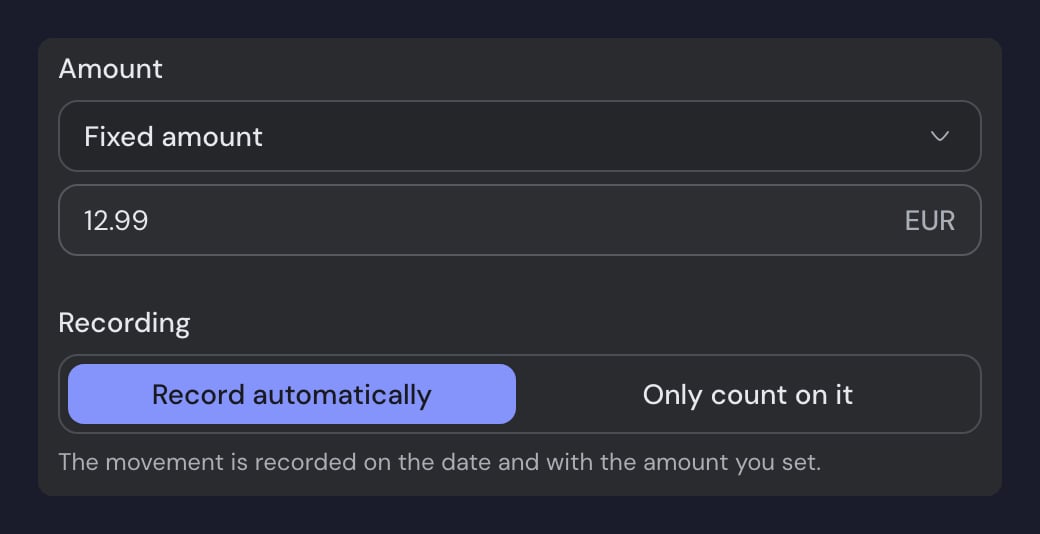
Click Add and choose the account. Enter the name, amount, frequency, and start date, plus an end date if there is one. On a manual account you also get a Recording question: Record automatically writes the movement into the account on the right date (which is what makes it a scheduled transaction); Only count on it leaves it forecast only, for you to record when it happens.
Editing, pausing, or deleting
On the Recurring page, the schedule sits among your expenses or income, carrying a Scheduled mark. Click it to open its details. That’s where you’ll find Pause and, under the ⋯ menu, Edit and Delete. Changing the amount doesn’t rewrite movements already recorded, only the ones that come after. Deleting the schedule doesn’t delete the movements it already recorded: they stay in your accounts and your history — they just stop being tied to a template. The same page shows Recorded movements: the list of movements guito has already written from this template.Spotting a movement recorded by a scheduled transaction
In your Transactions, a row recorded by a scheduled transaction carries its own mark. Other than that, it’s a movement like any other: you can edit it, categorize it, or delete it without affecting the schedule.Seeing upcoming entries in the forecast
In Transactions, with the Forecast switch on, the upcoming entries for each schedule appear in the list through the end of next month and count toward the period balance. They have no Record button: guito records them on the right date, and doing it by hand would create a duplicate. A paused schedule doesn’t appear in the forecast.How it differs from a recurring series
A scheduled transaction and a recurring series solve different problems: the recurring series forecasts and alerts, the scheduled transaction records. They aren’t the same thing, and they don’t replace each other automatically.Frequently asked questions
Why didn't my scheduled transaction record anything this month?
Why didn't my scheduled transaction record anything this month?
Check that the account it’s attached to is still a manual account, with no automatic bank sync: if you connected it in the meantime, the schedule pauses itself while the account is connected. Also check that you haven’t paused it manually or that it hasn’t passed its end date.
Can I pick a bank-linked account for a scheduled transaction?
Can I pick a bank-linked account for a scheduled transaction?
The picker shows all your accounts, but only a manual one produces a scheduled transaction. Pick a bank-linked account and guito creates a recurring series that only tracks the movement, because the bank is the one that records it.
If I delete a scheduled transaction, do the movements it already recorded disappear?
If I delete a scheduled transaction, do the movements it already recorded disappear?
No. The movements it already recorded stay in your accounts — they just stop being tied to a schedule.
Related pages

Recurring movements
Forecasts and alerts for charges guito detects or you track, without recording them for you.

Transactions and cash flow
Where movements recorded by scheduled transactions appear day to day.