

Create a category
There are two ways, and both give the same result.From a transaction
This is the fastest one when you’re classifying a transaction and the category you want doesn’t exist yet.1
Open the category picker
In Transactions, click a transaction’s category in the list itself, or open the transaction and click the Category field.
2
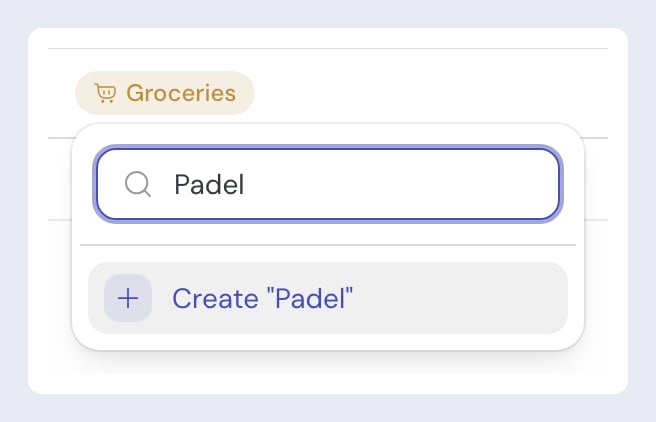
Type the name you want
The list filters as you type. If no category matches that name, a Create ”…” option appears at the end of the list.
3
Confirm the group and the icon
A small form opens with the name already filled in. The icon is suggested from it, and the Group field is pre-selected to match the transaction you were on (expense or income): confirm it or pick another. You can also write the AI note here.
4
Save
The category is created and assigned to that transaction right away. It’s also available for every other one from then on.
From settings
Use this one when you want to set up several categories at once, or organize the groups.1
Open categories
Click your name at the bottom of the sidebar and choose Categories. (You can also get there via Settings, on the Categories tab.)
2
Pick the tab
Expenses or Income, depending on the kind of category you’re creating.
3
Add the category to a group
In each group, use Add category, type the name, and save.
The icon is suggested from the name you type, and you can swap it at any time. Color isn’t picked per category: it comes from the group it belongs to, so categories in the same family read together in the charts.
Organize into groups
Groups are the layer above categories: Essential expenses, for instance, holding Housing, Groceries and Transport. They give the list its color and order, and summaries are aggregated by group. In Categories you can:- Create a group with Add group, choosing the type (expense or income) and the color.
- Change a group’s color, which changes the color of every category inside it.
- Drag a category to another position or to another group. You can also do it from the category’s ⋯ menu, under Move to.


A group can only be deleted once it’s empty. Move or delete the categories still inside it first.
Help the AI categorize better
Each category has an optional description field where you can write examples or notes: on Groceries, for example, “Lidl, Carrefour, Aldi”. guito uses that note when it automatically classifies incoming bank transactions, so it’s worth filling in on categories you created yourself, whose names may not be self-explanatory. Your custom categories count exactly like the default ones: see Automatic categorization for how guito picks between them and how it learns from your corrections.Edit and delete
To rename, change the icon, or write the AI note, use Edit in the category’s ⋯ menu. To delete, use Delete in the same menu. If the category is still used by transactions of yours, guito tells you how many and gives you two ways out: Migrate and delete, which moves those transactions to a category you pick, or Delete without migrating, which returns them to the automatic suggestion, when there is one, or leaves them uncategorized. Either way the transactions stay; only their classification changes. The count includes transactions that use the category only inside a split, and that page explains what happens to their parts. Deleting is permanent: a default category you remove doesn’t come back on its own. If you need it again later, create it with the same name. If the category is the only one a budget tracks, guito won’t let you delete it and tells you which budget. Otherwise the budget would have nothing left to measure and would start counting all your spending against the same limit. Adjust the budget’s scope in Budgets, or delete it, and then delete the category. If you choose Migrate and delete instead, the budget follows the movements to the target category on its own.Some categories are marked required. There’s one per type, it’s where transactions that don’t belong anywhere else end up, and so it can’t be renamed or deleted.
Frequently asked questions
How many categories can I have?
How many categories can I have?
There’s no limit, and custom categories don’t depend on your plan. That said, very long lists make charts hard to read: if you find yourself with dozens of categories, merging the similar ones usually pays off.
If I delete a category, do I lose the transactions?
If I delete a category, do I lose the transactions?
No. The transactions stay; what changes is the category they’re classified under. If the category is in use, guito first asks whether to move them to another category or delete it without migrating, in which case they go back to the automatic suggestion, when there is one, or are left uncategorized. Either way, you can classify them again at any time.
Can I put a transaction in two categories?
Can I put a transaction in two categories?
Yes. A transaction has one category, but you can split it across several, each with its own amount: a supermarket receipt with a book in it gets the groceries part in one category and the book in another. Each category counts only its part in the charts and budgets.
Can I pick a category's color?
Can I pick a category's color?
The color always comes from the group. To change a category’s color, change the group’s color or move the category to another group.
Can other people see my categories?
Can other people see my categories?
No. The categories you create and the names you give them stay in your account only.
Related pages

Automatic categorization
How guito picks each transaction’s category and learns from your corrections.

Transactions and cash flow
View, filter and classify your bank transactions.

Budgets
Set spending limits per category and track the month.

AI assistant
Ask about your spending in natural language.